Event Format
An event format (also called an event template) defines the rules for a single event within a show. Each event in a show can use a different format - for example, you might have an Open barrel race, a Youth barrel race, and a Senior barrel race, each with different age requirements and payout structures.
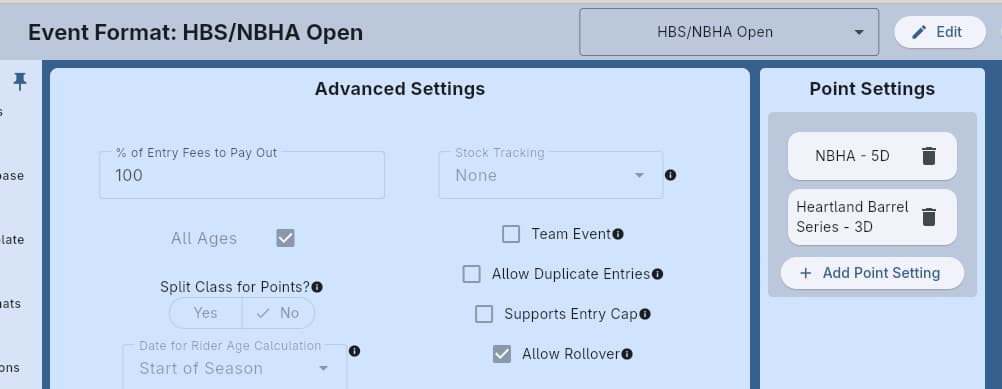
SpeedySteeds includes preset event formats. You can use them as-is, modify them, or create your own.
General Settings
Name
The default event name used when this format is added to a show (e.g., “Open Barrels”, “Youth Poles”, “4D Barrels”). Once an event is added to a show, its name can be edited independently on the event details screen without changing the template. The per-event name is what appears on websites, draw sheets, and printed results.
Event Category
Determines how results are measured and ranked:
- Timed - Contestants are ranked by run time (lower is better). Used for barrel racing, pole bending, breakaway roping, team roping, calf roping, etc. Results require a horse.
- Scored - Contestants are ranked by score (higher is better). Used for bull riding, bronc riding, and other rough stock events. Results do not require a horse - contestants are paired with stock (bulls, broncs) via the stock draw.
When you change the event category, the results table adapts automatically: timed events show a Horse column, scored events hide the Horse column and always show a Stock column.
Payout Percentage
The percentage of collected entry fees that is returned to riders as prize money. For example, if payout is set to 70% and $1,000 in entry fees is collected, $700 is available for payouts.
Drag Interval
How many runs occur between arena drags. This number prints on draw order documents so your arena crew knows when to drag. For example, a drag interval of 5 means the arena is dragged after every 5 runs.
Penalty Types
For timed events, you can define one or more penalty types that apply to each run. Each penalty type has a name (e.g., “Knockdown”, “Barrier”, “One Leg”), a seconds value that gets added to the rider’s time, and a “Multiple Allowed” flag.
- Multiple Allowed types (e.g., barrel knockdowns) can happen more than once per run. The results table shows a +/- counter column for these.
- Single occurrence types (e.g., barrier break, one-leg catch) are binary on/off. The results table shows a toggle button column for these.
Each penalty type gets its own column in the results table. The penalized time is calculated as raw time + sum(count * seconds) across all penalty types.
If no penalty types are defined but a legacy Penalty Seconds value exists, the system falls back to the old behavior of raw time + (penalty count * penalty seconds).
Team Event
When enabled, the event is treated as a team event (e.g., team roping). Each entry consists of two riders who compete as a pair, and both members occupy a single row in the results table.
- Both team members share the same draw, time, penalties, place, and turn-out state because those values now live on a shared team record. There is no way to enter divergent values for the two riders.
- Adding riders to a team event uses a single-select rider list - pick one rider, assign them to a teammate slot, then pick the next.
- Scratches, DQs, turn-outs, and removals act on the team as a whole. Removing a team deletes both rider results in one cascade.
- Each rider keeps their own points (so season standings stay independent), and the payout cell on the collapsed row is the sum of both riders’ winnings.
Teammate Role Names
Below the Team Event checkbox, two text fields let you label the two roles for this event format. For IPRA team roping the defaults are Header and Heeler; a generic team event might use Rider 1 and Rider 2 (or whatever names suit your discipline). The labels show up in the add-rider dialog and on the result table so secretaries know which rider goes in which slot. If you leave the fields blank, the app falls back to Rider 1 / Rider 2.
Stock Tracking
Controls whether and how livestock are tracked for this event. Choose from:
- None - No stock tracking (standard barrel racing, pole bending, etc.)
- Individual Draw - Each contestant is drawn a specific named animal whose identity matters for scoring (bull riding, bronc riding). The separate Generate Draw button is hidden and a single Generate Stock Draw / Regenerate Stock Draw action from the event’s draw menu handles both the contestant run order and the stock assignment in one step. Stock is unique across the rodeo - each animal can only be assigned once per show unless you explicitly choose to reuse.
- Common Pen - Stock comes from a shared pen; the app tracks usage but does not assign specific animals to contestants (team roping, breakaway, tie-down, chute dogging). Useful for events like MYTRA where stock is rotated from a common pool.
When stock tracking is not None, configure:
- Stock Type - which kind of animal is used (
bull,bronc,steer,calf,goat, orsheep). Only stock of this type from the show inventory is considered.
See Stock Management for the full inventory and reride flow, and Draw Management for draw generation.
Allow Rollover
Controls whether rollovers are permitted for this event format. Rollovers let a rider repeat a run within the same event (for example, if they re-ride after stock issues). When Allow Rollover is unchecked, the rollover column is hidden in the results table and rollovers cannot be created.
This setting is only meaningful for single-run events (Go-Round Count = 0). Multi-round events use go-rounds instead of rollovers.
Time Limit
An optional time limit in seconds for the run. When set, runs exceeding this time are automatically marked as no-time. Used by organizations like MYTRA for youth events where a maximum run time is enforced for safety.
Barrier
When enabled, indicates that a barrier or score line is used for this event (e.g., roping events). This is a metadata flag for display and tracking purposes.
Supports Entry Cap
When checked, events using this format will show an Entry Cap field on the event details screen. This is primarily used by organizations like PRCA and WPRA that enforce limited-entry quotas. Most barrel racing organizations leave this unchecked.
Entry Cap (Max Entries)
An optional limit on the number of entries an event will accept, visible only when the event format has Supports Entry Cap enabled. When set, SpeedySteeds rejects any new entry once the existing count reaches this number. Leave the field blank for unlimited entries (the default).
- For team events a team counts as one entry, not two.
- For multi-round events each rider/horse pair counts as one entry regardless of how many go-rounds they have rows in.
- The local web sign-up portal shows the cap to contestants so they can see whether the event is still open. If the event fills between page load and submission, the desktop rejects the late entry.
Entry caps are enforced in the service layer, not just the UI. Even entries added programmatically (bulk import, web portal) respect the quota.
Allow Duplicate Entries
Controls whether the same rider/horse combination can be entered into the event more than once. When Allow Duplicate Entries is unchecked (the default), the add-rider dialog filters out anyone already entered. When checked, every rider/horse combo stays available in the dialog so you can add them repeatedly - useful for team roping where one cowboy enters several times pairing with different partners. The IPRA Dally Team Roping seed event ships with this enabled.
Age Settings
Age Ranges
Control which riders are eligible based on their age:
- All Ages - No age restriction; any rider can enter
- Start Age - Minimum age requirement. The & Over option allows riders at or above this age.
- End Age - Maximum age requirement. The & Under option allows riders at or below this age.
Rider Age Date
Determines when a rider’s age is calculated:
- Start of Year - Age as of January 1st of the show’s year
- Start of Season - Age as of the season’s start date
Many organizations calculate rider age as of January 1st so that a rider’s division doesn’t change mid-season due to a birthday.
Split Class
Splits a single event into two classes for scoring purposes, while riders still compete together in a single run. This is commonly used when Youth and Teen classes are combined for competition, but points need to be calculated separately.
When enabled, configure:
- Split Age - The age threshold that divides the two groups
- Upper Split Class Name - Name for the older group (e.g., “NBHA Teen”)
- Lower Split Class Name - Name for the younger group (e.g., “NBHA Youth”)
Gender Restriction
Optionally restricts which riders can compete in this event based on gender:
- None - No gender restriction (default)
- Female Only - Only female riders (e.g., IPRA Barrel Racing, IPRA Breakaway Roping)
- Male Only - Only male riders
When a rider’s gender doesn’t match the restriction, a warning is logged but entry is not blocked - this allows for flexibility when gender data is incomplete.
Payout & Points Configuration
Payout Organization Setting
Selects which organization’s payout configuration (divisions and entry ranges) to use for distributing prize money. You can use payout settings from any organization.
Point Organization Settings
Selects which organization(s) calculate points for this event. Unlike payouts, you can assign multiple organizations for point calculation - this is how co-sanctioned events work. A single run can earn points in IBRA, NBHA, and a local club simultaneously.
Round Structure
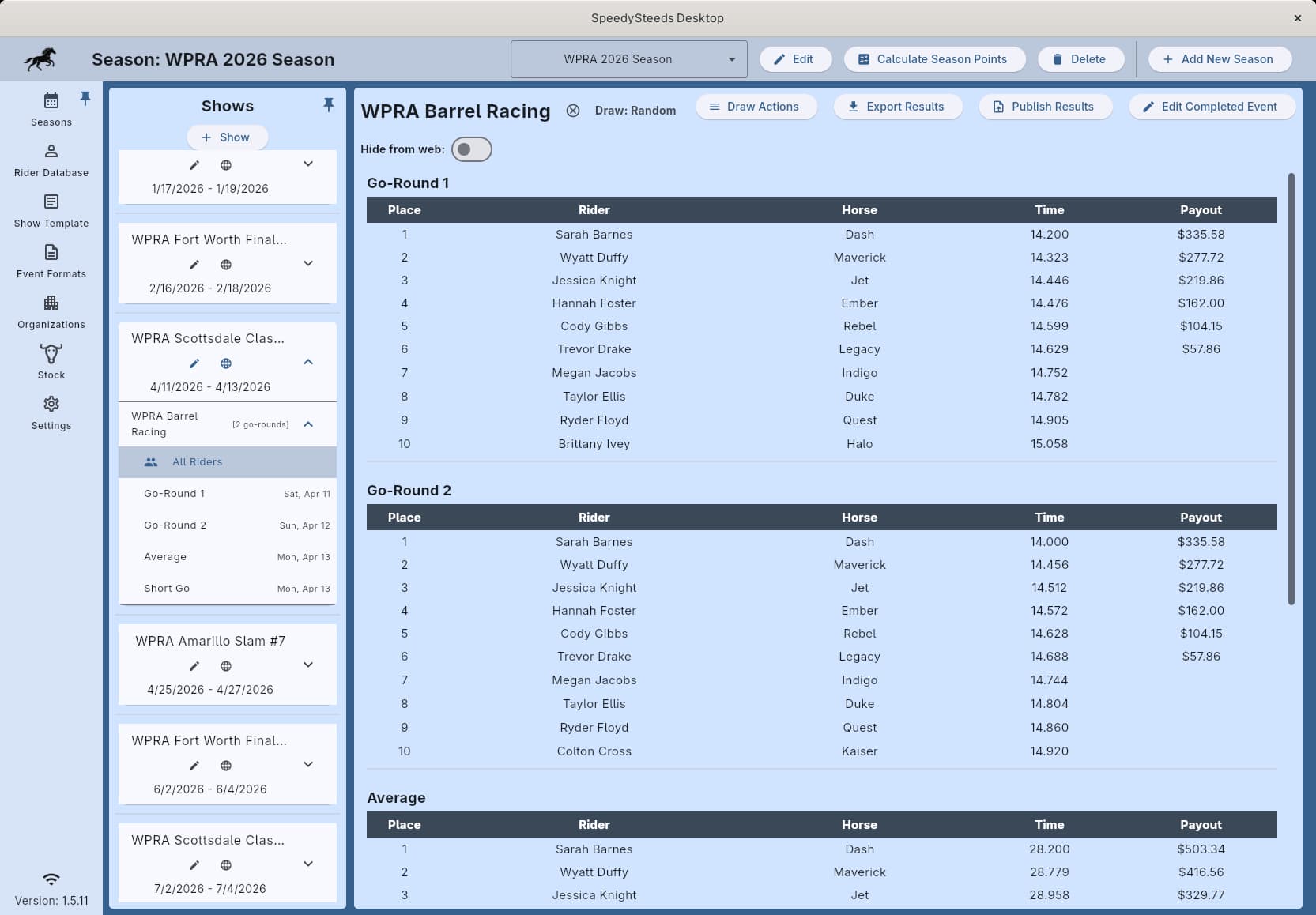
For multi-round events (common in WPRA-style formats), configure:
Go-Round Count
The number of preliminary rounds. Set to 0 for a standard single-run event.
Include Average
When enabled, an average (aggregate) standing is calculated across all go-rounds.
Auto Short Go
When enabled, a short go (finals round) is automatically created. Top qualifiers from the go-rounds advance to the short go.
Short Go Qualifier Count
The number of riders who qualify for the short go based on go-round performance.
Draw Behaviors
Controls how run order is determined for each round type:
- Random - Completely random draw order
- Reverse of Previous - Run order is reversed from the previous round
- Reverse Qualification - Short go order is reversed from qualification standings (slowest qualifier runs first)
- Manual - You set the draw order by hand
The Go-Round Draw Behavior applies to all go-rounds, and the Short Go Draw Behavior applies specifically to the finals.
Event Subtypes
Open
Standard event with no horse age restrictions.
Futurity
Restricted to horses at or below a maximum age. Configure the Futurity Max Age (horse’s age calculated from foal year).
Derby
Similar to Futurity but typically with a higher age limit. Configure the Derby Max Age.
Juvenile
Restricted to young horses (typically 3-year-olds). Used by BFA for horses that have never competed in a barrel race before a specific date. Configure the Futurity Max Age - Juvenile events share this field with Futurity.
Super Stakes
Also restricted to young horses (typically 3-year-olds). Used by BFA for horses entering their very first barrel competition. Configure the Futurity Max Age - Super Stakes events share this field with Futurity.
Futurity, Derby, Juvenile, and Super Stakes subtypes require that horses have a foal year set in the Rider Database. Horses without a foal year will not be eligible.
Workflow
- Navigate to the Event Format tab
- Click the add button to create a new format, or edit an existing one
- Set the name, payout percentage, and age requirements
- Choose the payout organization setting and point organization settings
- Configure round structure if using multi-round format
- When creating a show, add events using this format
Sidepots
A sidepot is a subsidiary event that shares run data (time, score, penalties) from a parent event but has its own purse, entry fee, and payout calculation. Common examples include a 1D-only sidepot off a 4D barrel race, or a youth sidepot off an open event.
How Sidepots Work
- Each sidepot is linked to a parent event and inherits run data through the rollover mechanism.
- Sidepot enrollment is opt-in - adding a rider to the parent event does not automatically add them to sidepots. Riders must be explicitly added to each sidepot they want to enter, either from the sidepot’s own “Add Riders” dialog (which shows only riders already in the parent) or via web pre-registration checkboxes.
- A rider must be in the parent event to enter a sidepot. The rider/horse combination in the sidepot is locked to the one used in the parent.
- Sidepots may have their own age and gender restrictions - only parent riders who meet the sidepot’s template restrictions appear as eligible.
- Each sidepot has its own entry fee and added money, so the payout engine calculates purses independently.
- The sidepot entry inherits the parent’s time/score/penalties via rollover - no separate run is needed.
- When a rider is removed from the parent event, they are also removed from all sidepots.
- When the parent event is marked complete, all sidepots are automatically marked complete.
Creating a Sidepot
- In the show list, open the show’s action menu (three-dot icon).
- Click Add Sidepot.
- Select the parent event from the dropdown.
- Choose an event format (template), set the entry fee and added money.
- The sidepot appears indented below its parent with a “SIDEPOT” badge.
Entry Fees
Each sidepot’s entry fee is independent. A rider entering the parent ($100) plus two sidepots ($25 each) pays $150 total, shown as three separate line items in the fee summary.
Web Portal
On the web sign-up portal, sidepots appear as opt-in checkboxes under their parent event. When the parent is selected, contestants can check which sidepots they want to enter.
See Also
- Organization - Configuring payout and point rules
- Divisions & Entry Ranges - How payouts and points are calculated per division
- Show - Adding events to a show
- Draw Management - How draw behaviors work in practice
- Stock Management - Livestock inventory and stock draw management
- Results & Scoring - Entering results for events