Stock Management
SpeedySteeds includes a full livestock inventory for rodeo events that require stock draws - bull riding, bronc riding, steer wrestling, breakaway roping, and more. You manage a centralized stock list, and the app assigns animals to contestants when generating draws.
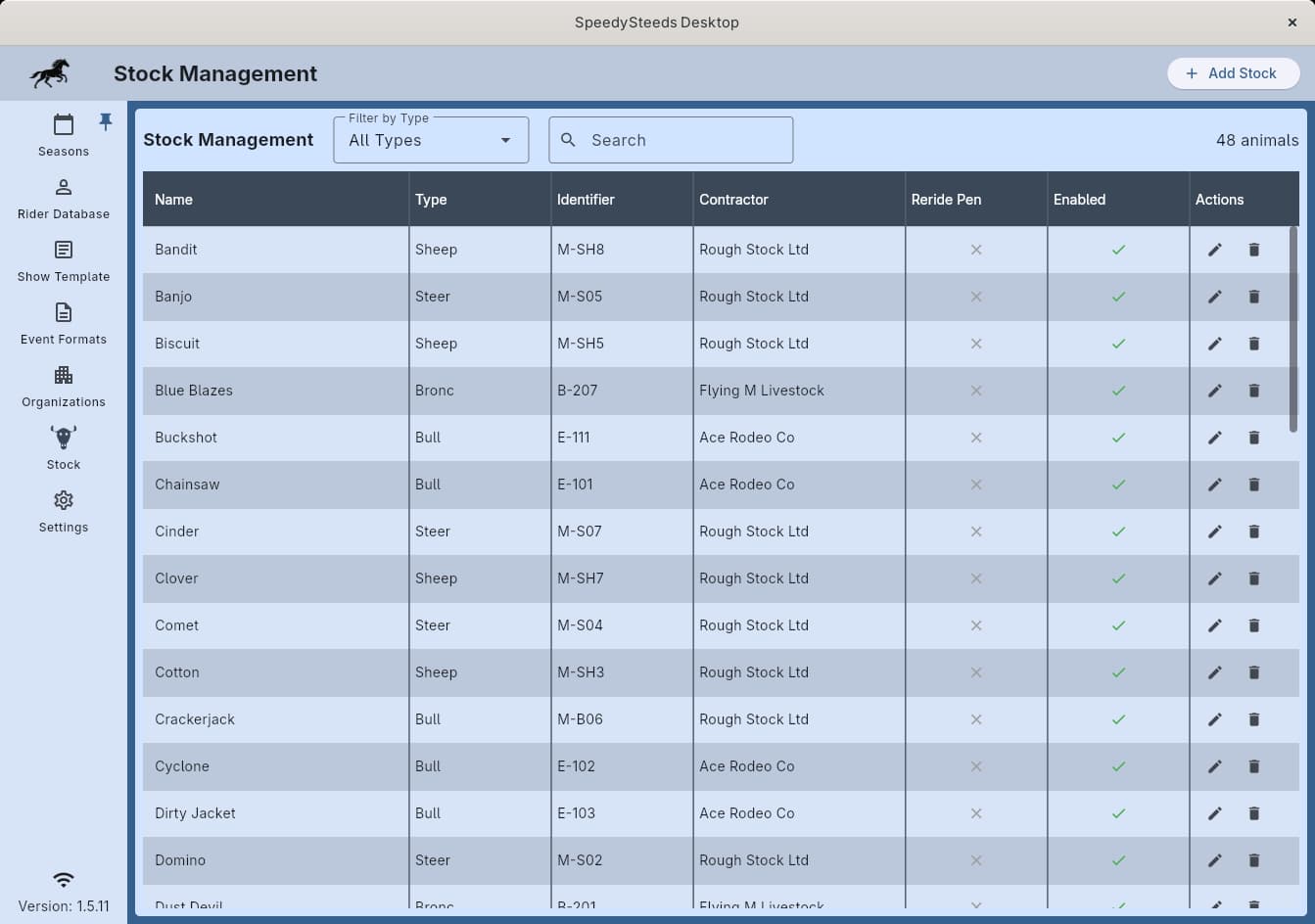
Stock Inventory
Adding Stock
- Navigate to the Stock screen
- Click the add button
- Fill in the stock details and save
Each stock animal has:
- Name (required) - The animal’s registered or barn name
- Stock Type - The kind of animal:
bull,bronc,steer,calf,goat, orsheep. Only animals matching the event’s stock type are considered for draws. - Identifier - An optional brand or tag (e.g.,
E-123,HS12R) for quick identification in the arena - Contractor Name - Optional stock provider name for tracking which contractor supplied the animal
- Enabled for Draws - When unchecked, the animal stays in inventory but is excluded from all stock draws and the reride pen. Use this to temporarily sideline an injured or unavailable animal without deleting it.
- Reride Pen - When checked, the animal is reserved for rerides only and excluded from regular draws. See Rerides below.
Searching and Filtering
The stock screen displays all animals in a data table. You can:
- Filter by type - Show only bulls, broncs, steers, etc.
- Search - Filter by name, identifier, or contractor name
Editing and Deleting
Click an animal in the table to edit its details. Use the delete action to remove an animal and any associated draw assignments.
Stock Tracking Modes
Each event format defines how livestock is tracked for that event:
| Mode | Description | Example Events |
|---|---|---|
| None | No livestock tracking | Barrel racing, pole bending, goat tying |
| Individual | Each contestant is drawn a specific named animal. Run order and stock assignment are generated together. | Bull riding, bronc riding |
| Common Pen | Stock comes from a shared pen. The app tracks usage but does not assign specific animals to contestants. | Team roping, breakaway, tie-down, chute dogging |
Individual Draw Flow
For events using the Individual stock tracking mode:
- Add stock animals of the correct type to your inventory
- Register riders for the event
- Open the event’s Draw Actions menu and select Generate Stock Draw
- The system generates both the contestant run order and stock assignments in one step
- Stock assignments appear in the Stock column of the results table
The separate Generate Draw button is hidden for individual stock events - a single action produces both the run order and stock pairing.
Stock Uniqueness
Each stock animal can only be assigned once per show. If you try to generate a draw when too few unused animals of the right type remain, SpeedySteeds warns you:
Only N unused <type> animals are available but M contestants are entered.
You can either Cancel and add more stock, or Draw Anyway to reuse animals that were already drawn elsewhere in the show.
Editing Stock Assignments
From Draw Actions > Edit Draw, you can drag contestants to reorder them and use the per-row Stock dropdown to reassign a specific animal. Saving persists both the new run order and any changed stock assignments.
For multi-round scored events, each round has its own stock draw generated from that round’s draw actions menu. Each round’s draw only locks its own stock out of other rounds during the uniqueness check.
Rerides
A reride is granted when a contestant’s original draw is invalidated - typically because the stock did not perform, there was a misdraw, or an equipment failure occurred. The reride system lets the secretary record the request, select a replacement animal from the reride pen, and update the stock assignment.
Requesting a Reride
- In the event’s result table, click the overflow menu (three-dot icon) on the contestant’s row
- Select Request Reride (only shown for stock draw events)
- In the reride dialog, select the Reason:
| Reason | Description |
|---|---|
| Stock Did Not Perform | The animal did not buck or run as expected |
| Misdraw | The contestant was incorrectly paired with the wrong animal |
| Equipment | Equipment failure (chute malfunction, broken flank strap, etc.) |
| Animal Welfare | The animal was pulled for welfare reasons |
| Other | Any other reason (describe in notes) |
- Optionally add Notes with additional details
- Select a Replacement Stock animal from the dropdown (populated from the reride pen)
- Click Grant Reride to approve and swap the stock assignment
The dialog displays the rider’s name and their current stock assignment for reference.
Reride Pen
Animals marked as Reride Pen in the stock inventory are reserved specifically for rerides. They are:
- Excluded from regular stock draws
- Available as replacement options in the reride dialog
- Still subject to the enabled/disabled flag (disabled reride pen animals are excluded from everything)
If no animals are marked as reride pen stock, the replacement dropdown in the reride dialog will be empty. Add reride pen animals to your inventory before the event starts.
See Also
- Event Format - Configuring stock tracking modes per event
- Draw Management - Generating stock draws
- Results & Scoring - Stock column in the results table