Performance Scheduling
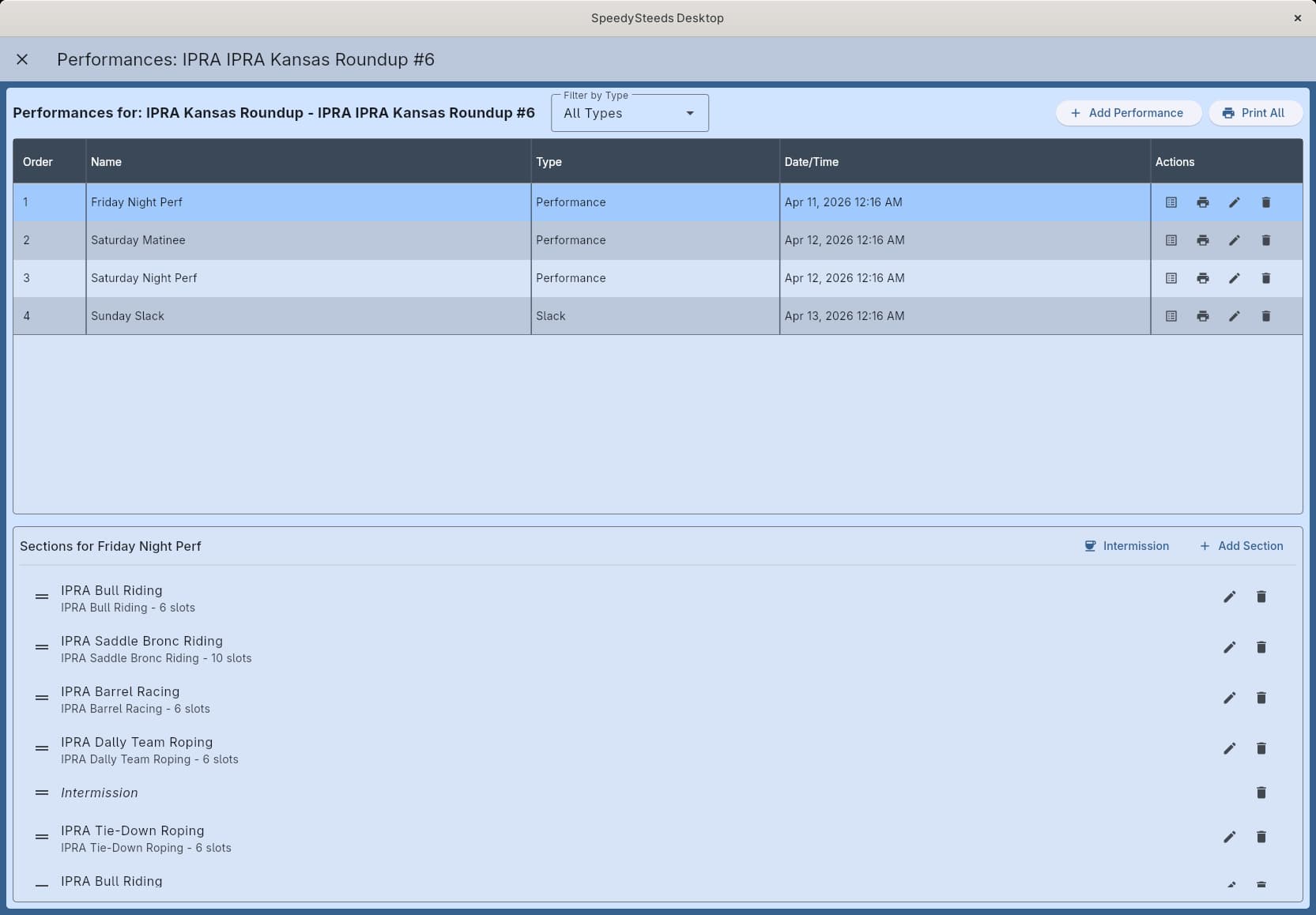
For multi-event rodeos, performances and slack let you organize when contestants run. A performance is a scheduled block of competition (e.g., “Friday Night Performance”), while slack covers contestants who don’t fit into a performance slot. SpeedySteeds lets you define performances, build sections within them, and assign contestants automatically or by hand.
Key Concepts
Performance vs. Slack
| Type | Description |
|---|---|
| Performance | A ticketed, scheduled block of competition with a set date/time. Spectators attend performances. |
| Slack | An overflow block for contestants who aren’t drawn into a performance. Slack typically runs before or after main performances with fewer spectators. |
Both are managed identically in the app - the type is a label that distinguishes them in schedules and printed sheets.
Performances Are Per-Show
Performances belong to a show, not to individual events. A single performance can include sections from multiple events - for example, a Friday night performance might have sections of bull riding, bronc riding, and barrel racing.
Creating Performances
- Navigate to the Performance screen for a show
- Click the add button
- Fill in the performance details:
- Name - Display name (e.g., “Friday Night Performance”, “Saturday Morning Slack”)
- Type -
PerformanceorSlack - Date/Time - Optional scheduled date and time
- Order - Display and execution sequence (1 runs first)
- Save the performance
Create as many performances and slack blocks as your rodeo schedule requires.
Performance Sections
Each performance is divided into sections. A section maps a specific event to a number of contestant slots within the performance. This is how you control which events run during which performance and how many contestants compete in each block.
Adding Sections
Within a performance, add sections to build the schedule:
- Event - Select which event this section covers (e.g., “Bull Riding”, “Saddle Bronc”). Leave blank for an intermission.
- Slot Count - How many contestants from that event run in this section. Use a negative value (-1) to mean “all remaining” - useful for the last section of an event.
- Label - Optional custom name for the section
- Order - Sections run in order within the performance
The same event can appear in multiple sections within a performance (e.g., “Bull Riding Section 1” and “Bull Riding Section 2”) or across different performances.
Intermissions
Add a section with no event selected to create an intermission break in the performance schedule.
Reordering
Drag sections to reorder them within a performance. The section order determines the sequence contestants compete.
Assigning Contestants
SpeedySteeds provides two ways to assign contestants to performance sections:
Auto-Assignment
- Auto-Assign to Performances - Distributes all registered contestants evenly across performances
- Auto-Assign to Sections - Fills performance sections sequentially by event, slotting contestants into sections based on slot counts
Auto-assignment respects the slot counts configured on each section and distributes contestants in draw order.
Manual Assignment
You can also manually assign or remove individual contestants from specific performances. This is useful for accommodating schedule requests or last-minute changes.
Out-If Not In Performance
Contestants entering through the local web portal can attach an out if not drawn into a performance flag to their entry (per PRCA R1.4). When performance assignments are finalized, any contestant with this flag who ended up in slack rather than a performance is automatically scratched.
Out-if flags are only available through the web sign-up portal. Entries added directly through the desktop app are managed by the secretary in person.
Printing
Performance schedules can be printed or exported to PDF, showing each performance’s sections, contestant assignments, and run order. This is useful for posting at the arena, distributing to announcers, and coordinating with arena crews.
Workflow
- Create your show and add events
- Register riders for events
- Generate draws for each event
- Navigate to the Performance screen
- Create performances and slack blocks with dates/times
- Add sections to each performance, selecting events and slot counts
- Use auto-assignment to distribute contestants, then adjust manually as needed
- Print performance sheets for the arena crew
See Also
- Show - Creating shows that use performances
- Draw Management - Generating draws before performance assignment
- Results & Scoring - Out-if flags and auto-scratch behavior