Local Web Portal
SpeedySteeds hosts a local web portal that runs whenever the desktop application is active. This portal is accessible from any device on the same network - phones, tablets, or other computers - using a standard web browser.
What the Portal Offers
- Show information - View show details, schedules, and event listings
- Rider sign-up - Contestants can register for events, select horses, and opt into sidepots directly from their device
- Membership entry - When the organization has Membership Required at Entry enabled, the sign-up form collects membership information (org, member ID, type). Permit and card holder options appear when the organization allows them.
- Fee selection - Contestants can select optional and multiple custom fees (stall rentals, camping, etc.) during sign-up
- Buddy picker - Secretaries can declare buddy groups from the Office tab for organizations with the Buddy System enabled. Named buddies are drawn consecutively. When Multi-Event Buddy is on, the group extends across every event at the show. Buddy groups can also be managed from the desktop app - see Draw Management - Buddy Groups.
- Out-if flags - Contestants can attach conditional scratch/release flags to their entry (out if buddy dropped, out if not in performance, out if weather cancellation) per PRCA R1.4
- Entry cap awareness - Events with a max entry cap display remaining availability. If an event fills between page load and submission, the entry is rejected.
- Central entry banner - When an organization’s Entry Channel is set to Central Entry, the portal displays a banner with the central entry contact information instead of an inline sign-up form
- Fee summaries - View per-rider fee breakdowns for specific shows
- Payment status - Update rider attendance and payment status
- Real-time sync - All data synced from the desktop application via WebSocket in real time
Portal Sections
The portal landing page routes to three audiences, each scoped to the show currently selected in the header:
-
Office - PIN-gated secretary tools:
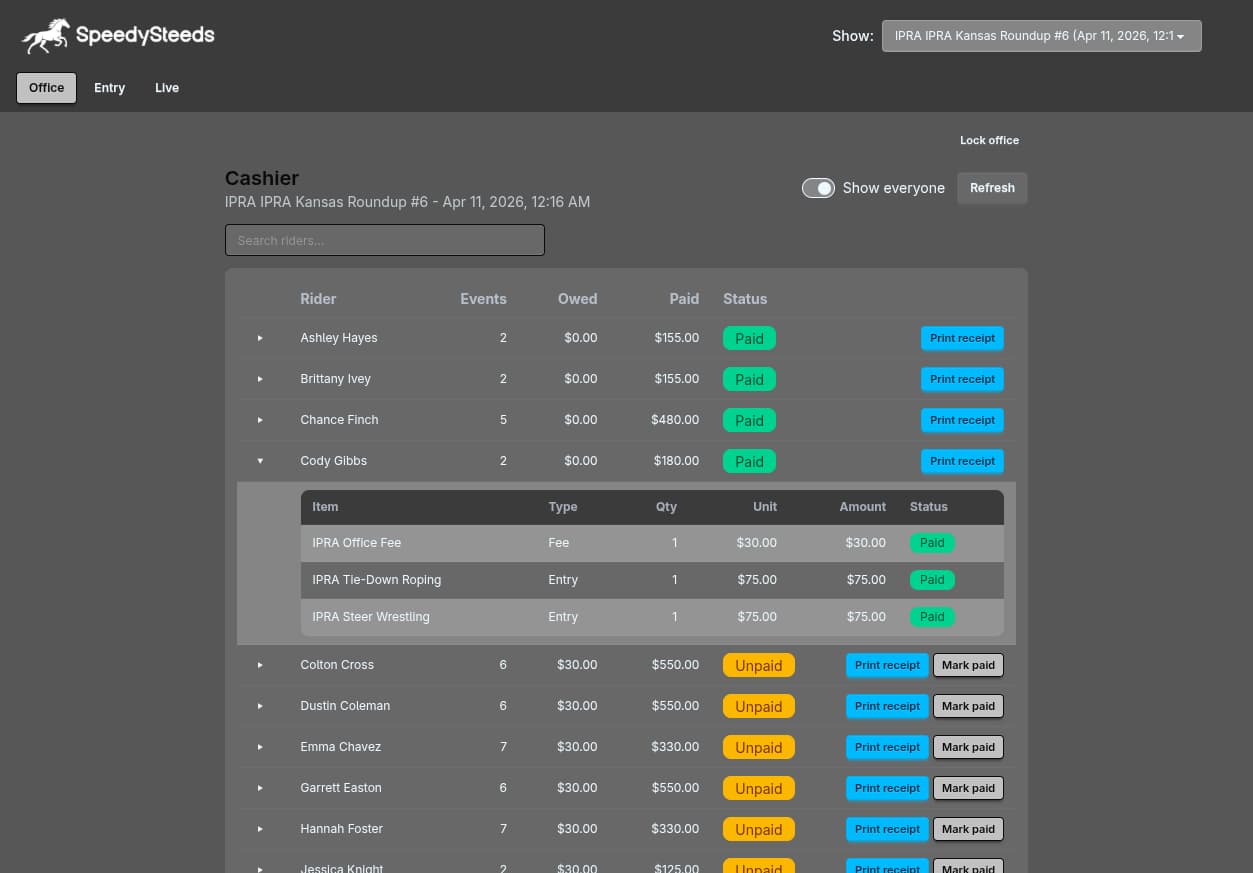
- Cashier - Unpaid riders by default with a toggle to show everyone. Click any row to expand a line-item breakdown of what the rider owes. From each row the secretary can add an optional custom fee, print a receipt, or mark the rider paid.
- Entries - Roster per event with out-if flags, sidepot labels, and buddy groups.
- Enter Event - Enter an existing rider and horse into an event. Contestant picker is a searchable dropdown.
- Buddy Group - Declare a buddy group for the draw (only shown for orgs with Buddy System enabled; multi-event toggle appears when the org allows it).
- Riders - Cross-season rider lookup and fee history.
-
Entry - Contestant self-service:
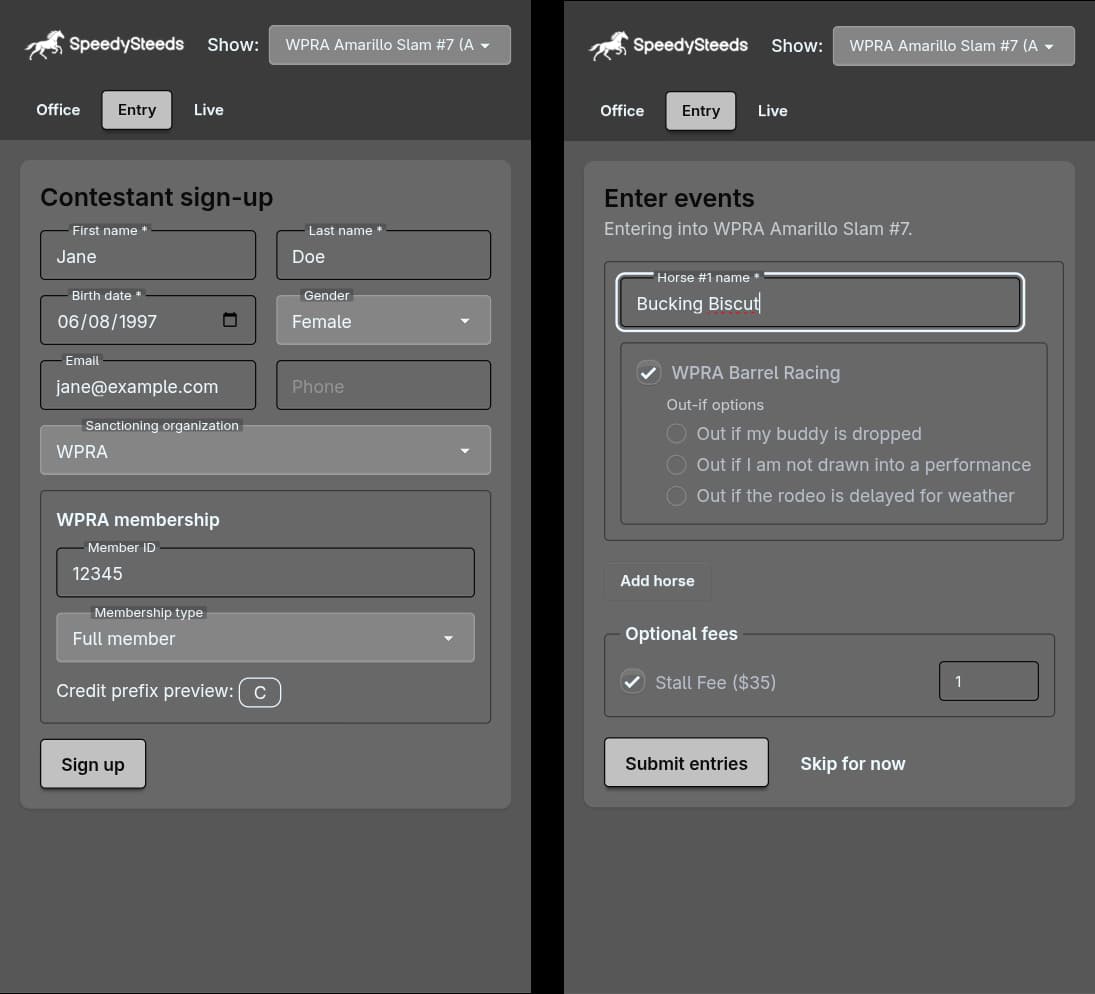
- Sign Up - New contestant registration, followed immediately by event entry (multi-horse class picker, sidepots, rollovers, scored/rough-stock events, and optional custom fees).
-
Live - Read-only spectator views:
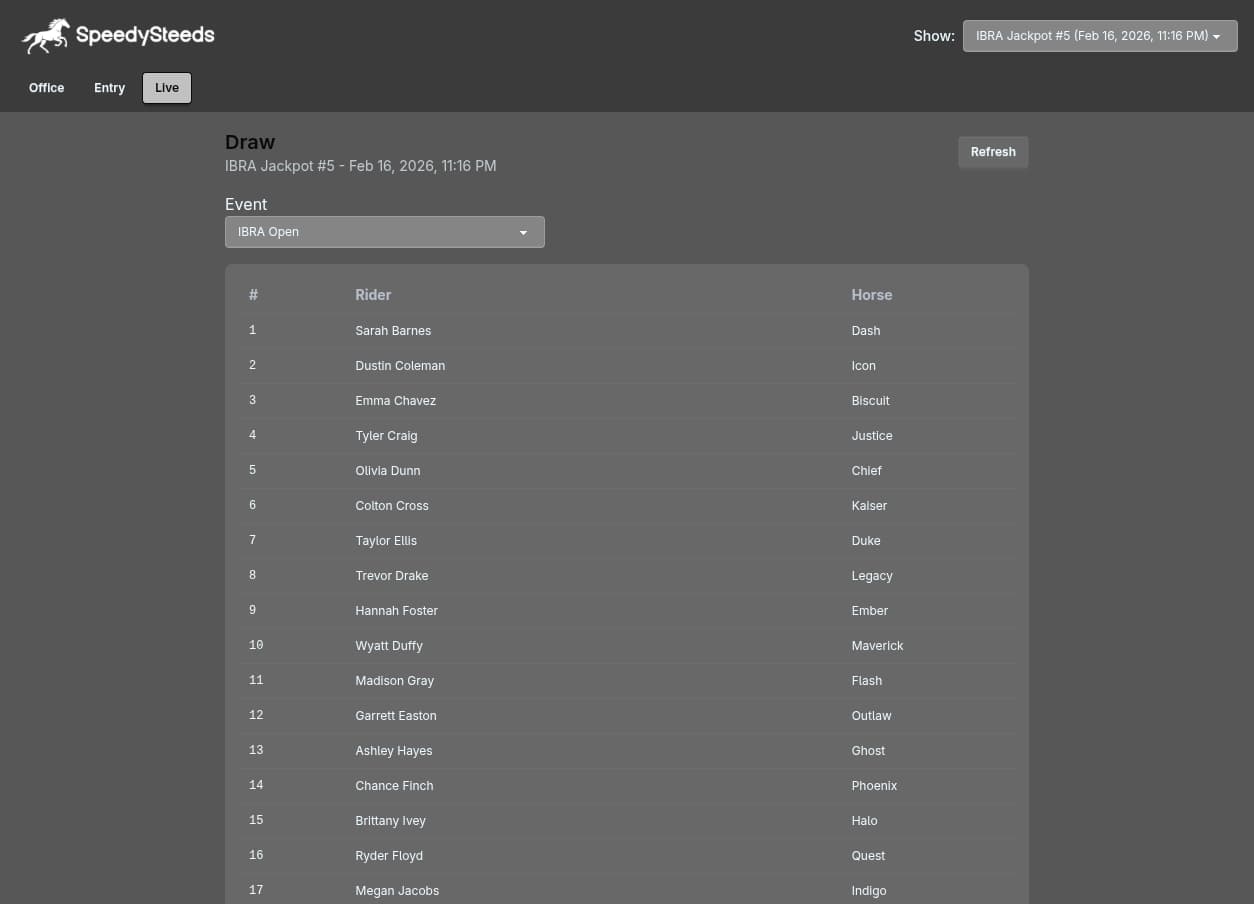
- Draw - Run order for the current performance.
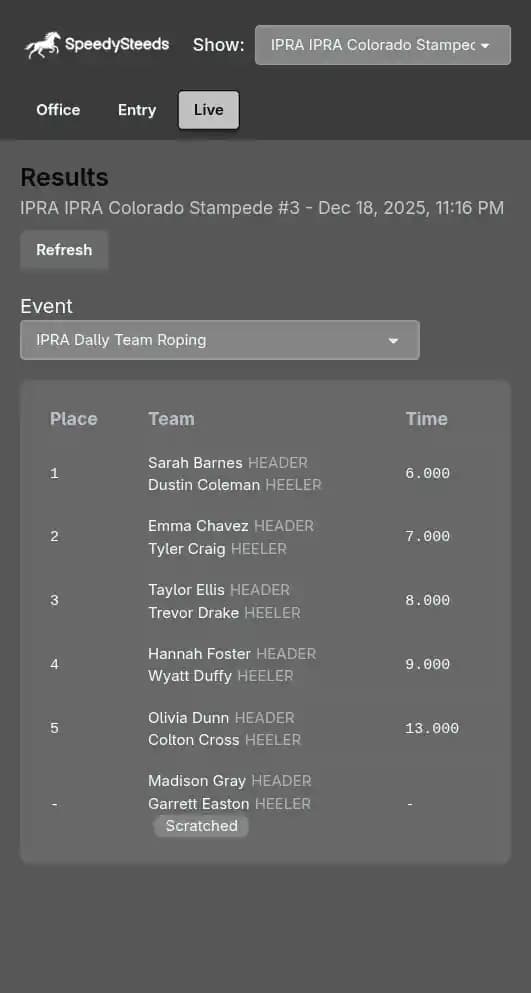
- Results - Live results (place / time / score) as they are entered.
- Payouts - Payouts once an event closes.
Office PIN
Office routes require a PIN configured in the desktop Settings tab under Office PIN. Leave it blank to disable portal office access entirely. The PIN is hashed client-side with a per-session salt before being sent to the desktop, so it is never transmitted in plain text over the LAN.
How It Works
When SpeedySteeds Desktop is running, it starts a local HTTP server on port 8080. This server hosts a Next.js web application and opens a WebSocket connection for real-time data synchronization. Any changes made in the desktop app (new results, payment updates, etc.) are pushed to the web portal immediately.
Accessing the Portal
Finding the Connection URL
In the desktop app, navigate to the Settings tab. Under Web Endpoints, you’ll find two connection options:
http://speedysteeds.local:8080- Hostname-based URL (may take up to one minute to resolve on the first connection)http://xxx.xxx.xxx.xxx:8080- IP address-based URL (connects faster)
Connecting from a Device
- Ensure the device is on the same local network as the computer running SpeedySteeds (Wi-Fi, wired, or hybrid)
- Open any web browser (Chrome, Safari, Edge, etc.)
- Enter the URL including the
:8080port - The portal loads automatically
The IP address URL generally connects faster than the hostname URL. Use the IP address if the hostname takes too long to resolve.
Use Cases
At the Announcer’s Booth
Set up a tablet at the announcer’s booth to display current results and draw orders without needing a second copy of the desktop software.
At the Registration Table
Use a phone or tablet to check rider fees and mark riders as paid while they check in at the registration table.
For Riders
Share the IP address or hostname with riders so they can check results from their phones while at the event.
The portal is only accessible while SpeedySteeds Desktop is running and the devices are on the same local network. It does not work over the internet.
See Also
- Advanced Settings - Web server info display
- Show Fees & Billing - Fee data visible on the portal
- Results & Scoring - Results visible on the portal