Organization
An organization represents a sanctioning body - such as IBRA, NBHA, IPRA, BFA, MYTRA, or a custom club - with its own rules for payouts and point calculations. SpeedySteeds ships with common organizations pre-configured, and you can create your own.
Riders can belong to multiple organizations through memberships. A single show can calculate points for several organizations simultaneously, enabling co-sanctioned events.
Organization Settings
Name
The organization name as it appears on point sheets and printed materials.
Minimum Place
When enabled, riders placing below this threshold receive zero points - even if non-members placed above them and freed up point-eligible positions.
Award Points for Runs with Penalty
Controls whether riders who incur any penalty type (barrel knockdowns, barrier breaks, one-leg catches, etc.) still earn points. When disabled, penalized runs receive no points regardless of placement.
Award Points To
Determines how points are tracked in season standings:
- Rider only - Points accumulate on the rider regardless of which horse they rode
- Rider / Horse combination - Points accumulate on the specific rider-horse pair, so the same rider on different horses has separate standings entries
- Horse only - Points accumulate on the horse regardless of which rider was aboard. Used by organizations like BFA where year-end awards are tracked per horse. Results without a horse (e.g., scored events) are excluded from horse-only standings.
Point Split Start
Controls how divisions are calculated:
- Entry - Divisions start from the fastest time among all entries
- Member - Divisions start from the fastest time among organization members only. Non-members are excluded from division calculations entirely.
Tie Points
When two or more riders tie for a place:
- High - All tied riders receive the highest point value for that place
- Divide - The total points for all tied places are summed and divided equally among tied riders
Standings Type
How season standings are ranked:
- Points - Standings ranked by accumulated points (most common for clubs like IBRA, NBHA)
- Money Won - Standings ranked by total prize money earned (used by WPRA and IPRA - each dollar of prize money equals one standing point)
Max Time Delta
When set, riders whose time exceeds the fastest time by more than this number of seconds receive zero points. For example, BBR uses a 3-second cutoff - if the fastest time is 15.0s, any run slower than 18.0s earns no points.
Base Points
A flat number of points awarded to every eligible placing member, in addition to any bonus points from the entry range table. For example, BBR awards 5 base points to all placing members, plus bonus points based on finishing position and added money tier.
Best Division Only
When enabled, year-end standings keep only each rider’s highest-scoring division. If a rider earned points in multiple divisions across the season, only their best division counts toward final standings.
Added Money Split
Controls how added money is distributed across payout divisions:
- Even - Added money is split equally across all paid places
- Ratio - Added money is folded into the total purse and distributed proportionally by payout percentage
Entry-count based organizations (NBHA, IBRA) typically use Even. Purse-based organizations (WPRA, IPRA, BBR) use Ratio because their rulebooks fold added money into the total purse.
Migration note: This setting was previously on the event format (template) and has been moved to the organization. During migration, all built-in organizations are set to the correct value automatically. Custom organizations default to Even. If you had previously set an event format to Ratio for a custom organization, you will need to update the organization’s Added Money Split setting manually.
Ground Money
Controls whether unpaid winnings from no-shows are redistributed. When enabled (the default), prize money that would have gone to a no-show rider goes back into the payout pool as ground money. When disabled, unpaid winnings are not redistributed - they are simply retained. IPRA disables this setting.
Day Money
When enabled, cancelled events display an Apply Day Money button that distributes the purse equally among all entries. This is used by organizations like WPRA where a cancelled round’s purse is split evenly rather than forfeited.
Retroactive Points
When enabled, points are counted retroactively once a membership is added mid-season. For example, if a rider competes in three shows without a membership, then purchases one, all three shows’ points are recalculated to include that rider. When disabled (the default), only shows where the rider held an active membership at the time of competition count toward standings.
Withholding
When enabled, a configurable percentage is withheld from payouts. This is used by organizations that require withholding for taxes or association fees (e.g., IPRA withholds 10% as a sanction fee).
- Withholding Percent - The percentage to withhold from each payout
Entry Channel
How this organization accepts entries. Drives both the producer’s add-rider workflow and what the local web sign-up portal shows the contestant:
- Producer Direct - All entries are taken at the secretary’s office (or via the producer’s own portal). No central entry office is involved. This is the default.
- Central Entry - All entries flow through a central entry office (e.g., PROCOM for PRCA, WPRA Procom for WPRA). The web sign-up portal shows a “Entries handled by central entry” banner instead of taking the entry directly.
- SpeedySteeds.com - Entries are accepted through the SpeedySteeds online portal.
- Both - The producer can take direct entries and the central entry office can transmit entries.
When the channel is anything other than Producer Direct, the following two fields populate the banner:
- Central Entry Endpoint - A URL or phone number the rider can use to enter through the central office (e.g.,
https://procom.prorodeo.comor1-800-PRO-RODEO). - Central Entry Label - Display text for the endpoint (e.g., “PROCOM”, “WPRA Procom”). Lets the portal stay data-driven instead of branching on org name.
Membership Required at Entry
When on (the default), the local web portal asks the rider for membership information (org, member ID, type) at sign-up time. When off, the membership block is hidden - useful for organizations that only check membership at year-end standings reconciliation rather than at the box office.
Allows Permits
When enabled, the rider’s membership dialog and the web sign-up form expose the Permit membership type and the Eligible Circuits field. PRCA and WPRA both allow permits; most local clubs do not. See Memberships for how the credit prefix is computed for permit holders.
Buddy System
When enabled, contestants entering a multi-round event can request to be drawn consecutively with one or more named buddies. The draw composer keeps the buddy group together when generating round draws. PRCA Section R1.5 / WPRA 10.4.3. Default off.
When Multi-Event Buddy is also enabled (PRCA-style), buddy groups extend across every event at the same show - buddies entered in barrels are also drawn consecutively in poles. This setting requires the buddy system itself to be enabled.
- Max Group Size - Maximum riders in a single-event buddy group. Both PRCA (R1.5.2.2) and WPRA (10.4.3.1) cap this at 4. Set to 0 for no limit. Default 4.
- Max Cross-Event Group Size - Maximum riders in a cross-event (multi-event) buddy group. PRCA R1.5.3.2 and WPRA 10.4.3.2 cap this at 2. Only shown when Multi-Event Buddy is enabled. Set to 0 for no limit. Default 2.
Buddy groups can be managed in two ways:
- Desktop app - Open the show’s action menu and select Manage Buddy Groups. This dialog lets the secretary create, edit, and delete buddy groups, pick a primary rider, and add or remove members. See Draw Management - Buddy Groups for the full workflow.
- Local web portal - The buddy picker is automatically shown to contestants signing up for a show whose payout organization has the buddy system enabled. See Local Web Portal for details.
All-Around Awards
When enabled, SpeedySteeds calculates all-around season standings by summing each rider’s points across every event in the season whose template carries this organization’s point setting (or payout setting for money-won orgs). A rider must compete in a configurable minimum number of distinct event templates to qualify. Riders are ranked in a single flat list regardless of the org’s division/grouping setting.
- All-Around Enabled - Toggle all-around award tracking on or off
- All-Around Minimum Events - The minimum number of distinct event templates a rider must place in to qualify (default 3)
Run all-around standings from the Seasons tab: open the Calculate Standings menu and choose All-Around. Only organizations with all-around enabled appear in the dialog. Standings can be scoped per-org by a circuit filter and exported to PDF or Excel.
Daily High Point
When enabled, SpeedySteeds calculates per-show-day high point standings by summing each rider’s points (or money won, for money-won orgs) across every event on that day whose template carries this organization’s point setting (or payout setting). Results flagged as assisted are excluded, permit memberships are always excluded, and youth memberships are excluded when the org has Exclude Youth From Standings set. Riders are ranked in a single flat list per day, highest total first.
- Daily High Point - Toggle daily high point reporting on or off
Run daily high point from the Shows tab: open the show’s action menu and choose Daily High Point. Only organizations attached to the show with daily high point enabled appear in the dialog. Reports are generated one page (or Excel sheet) per organization per day and can be exported to PDF or Excel.
Retroactive Points
Controls whether results earned before a rider purchases a membership count toward year-end standings once they join.
- Off (default) - A result only scores if the rider’s membership start date is on or before the event date. Events that do not have an individual event date set are unaffected (no date comparison is performed).
- On - The membership start date is ignored. If a rider later purchases a membership, all of their prior season results are eligible for points.
Useful for organizations that allow walk-up competitors to retroactively pay for a membership and earn credit for earlier runs (MYTRA Section 12f).
Release Window (Hours)
Controls the refund eligibility window for doctor/vet/voluntary releases. When a contestant is released from an event, the system checks this setting to determine whether a refund is issued:
- Blank (not set) - Releases are always refundable, regardless of timing.
- 0 - Releases are never refundable. The entry is scratched but the fee is retained.
- N (e.g. 72) - The release must happen at least N hours before the show date for a refund to be granted. Releases after the deadline are scratched with no refund.
This is a per-organization setting so different sanctioning bodies can enforce their own refund policies.
First-Go Trades
WPRA Section R1.2 first-go trade rule. Toggle Yes to enable trades, then set the maximum number a contestant may request in the first go-round before the rule cuts off. The default is No (disabled), which matches PRCA, NBHA, IBRA, and IPRA. WPRA traditionally allows two.
When enabled, the round draw screen shows a “Request Trade” affordance for first-go entries and tracks how many trades have been used so the secretary can enforce the cutoff. The trade count resets to zero whenever the draw is regenerated.
Payout Settings
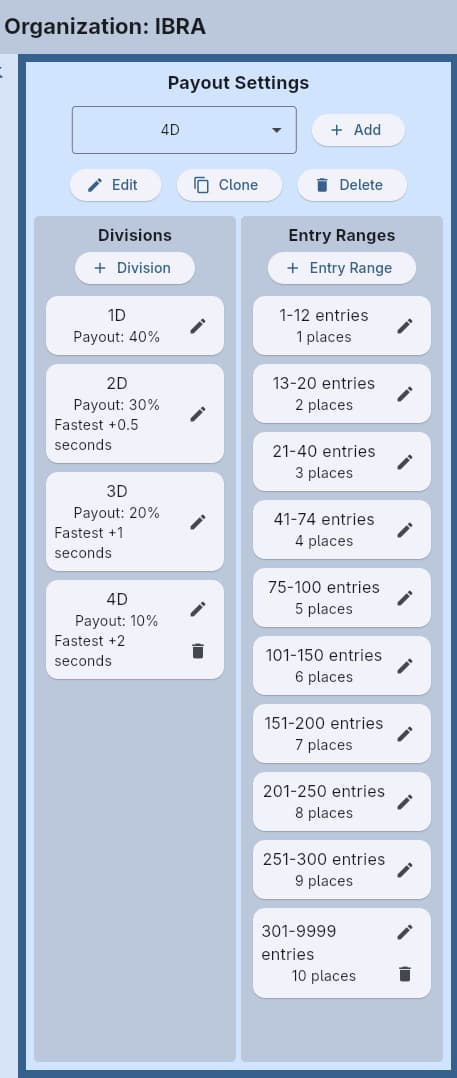
Payout settings define how prize money is distributed. Each payout configuration requires a Name, at least one Division, and at least one Entry Range.
See Divisions & Entry Ranges for a detailed explanation of how these work together.
Point Settings
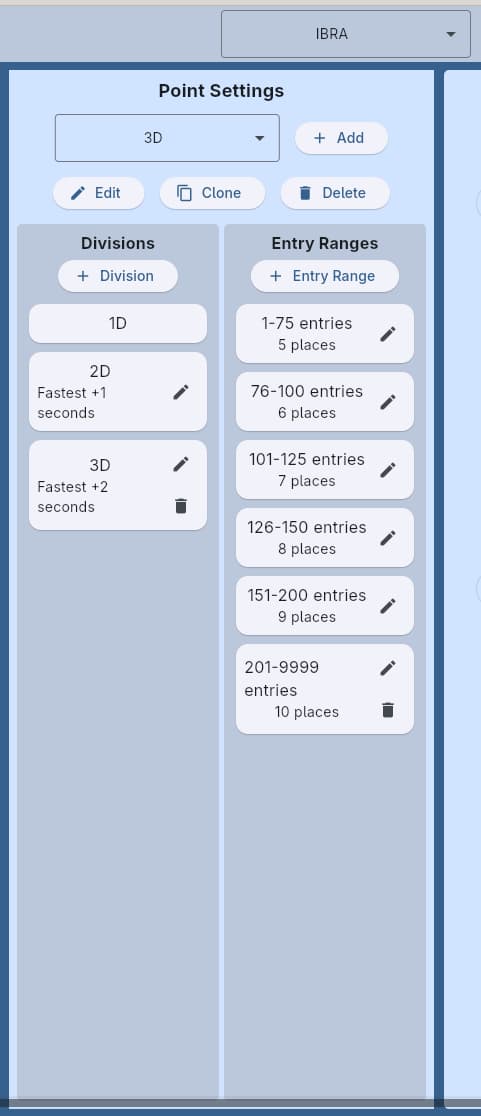
Point settings define how points are awarded. The structure is the same as payout settings - divisions and entry ranges - but the values represent points per place rather than payout percentages.
You can have multiple payout and point configurations within an organization to accommodate different class structures.
Multi-Round Support
For organizations that use multi-round formats (such as WPRA), enable the Multi-Round flag. This unlocks purse split rules that control how prize money is distributed across rounds:
- Go-Round Percent - Percentage of the purse allocated to each go-round
- Average Percent - Percentage allocated to the average (aggregate) standings
- Short Go Percent - Percentage allocated to the short go (finals) round
Multi-round settings work in conjunction with the round structure configured in the Event Format. The organization defines how much money goes to each round type, while the event format defines how many rounds and qualification rules.
Workflow
- Navigate to the Organization tab
- Click the add button or select an existing organization to edit
- Configure the general settings (points with penalty, split start, tie points, etc.)
- Add or edit Payout Settings with divisions and entry ranges
- Add or edit Point Settings with divisions and entry ranges
- Link the organization to event formats for use in shows
Organization Visibility
Producers who only work with one or two organizations can hide the rest. Hidden organizations - and any event templates linked exclusively to them - are filtered out of all dropdowns and pickers, reducing clutter in the event format selector and show setup.
Managing Visibility
From the Organization tab, click Visibility (wide screen) or open the Actions menu and select Manage Visibility (narrow screen). A dialog lists every organization with a toggle switch. Flip a switch off to hide that organization; flip it back on to restore it.
Both built-in and user-created organizations appear in the list and can be shown or hidden.
First-Run Wizard
The first-run wizard begins with an Organization Visibility step so new users can declutter before seeing any dropdowns. All organizations start as shown; toggle off anything you don’t need. You can change these settings at any time from the Organization tab.
How Visibility Affects Event Templates
An event template is visible when at least one of its linked organizations (payout or point) is visible, or when it has no organization links at all (standalone user-created templates). Hiding all organizations linked to a template effectively hides that template from every picker.
Hiding an organization does not delete it or affect existing shows, results, or point calculations. It only removes the organization from selection lists going forward.
See Also
- Divisions & Entry Ranges - Deep dive into how divisions and entry ranges work
- Event Format - Linking organizations to events
- Memberships - How riders join organizations
- Points & Standings - How organization rules affect standings