Results & Scoring
The results table is where you enter run times and manage race outcomes. After riders are registered and the draw is generated, you record each run’s time and the system automatically calculates placements, divisions, payouts, and points.
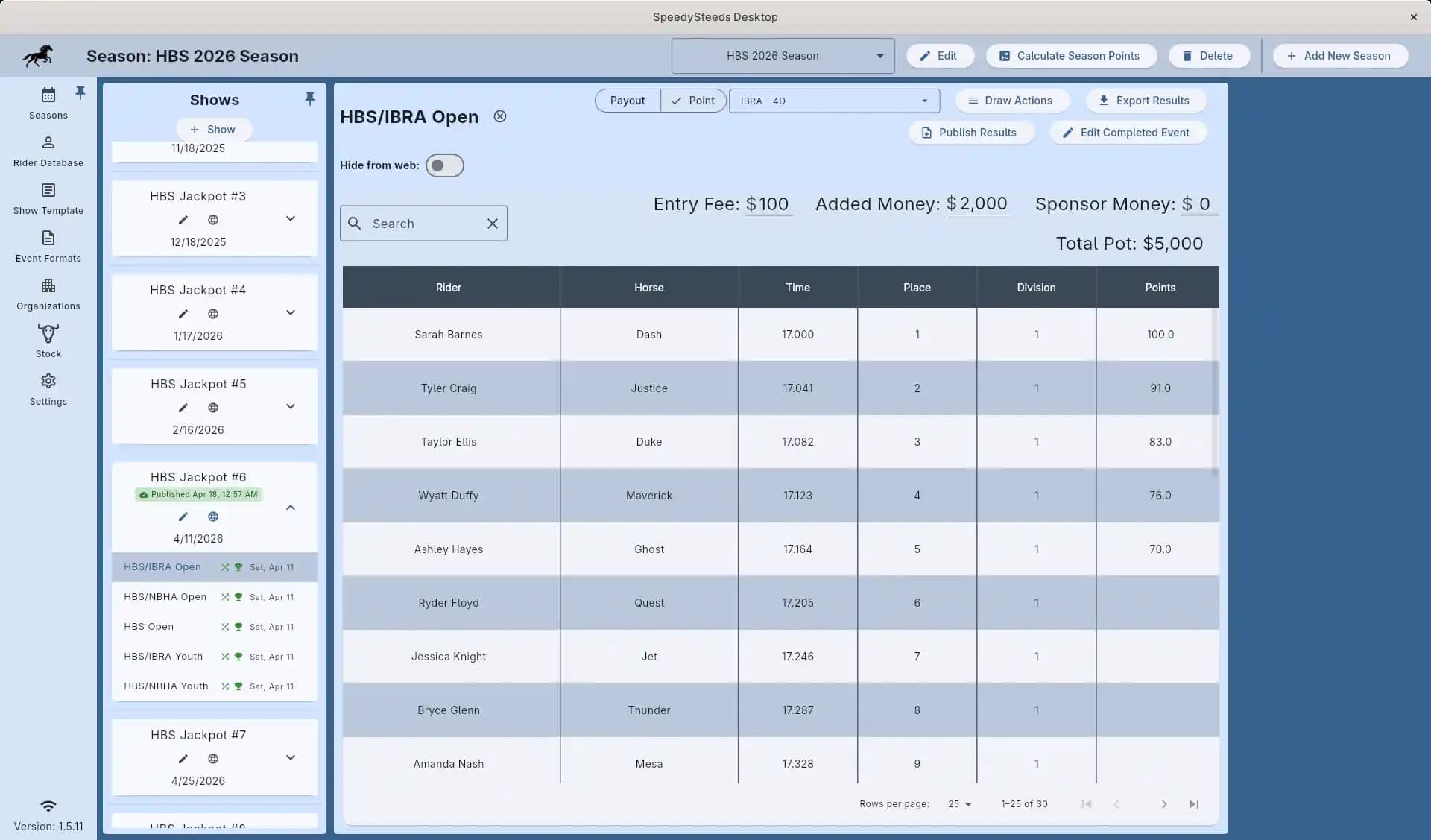
The Result Table
Each event displays a result table. The columns shown depend on the event’s category:
- Timed events (barrel racing, roping, etc.) show a Time column and a Horse column.
- Scored events (bull riding, bronc riding) show a Score column and a Stock column instead of a Horse column.
Rider Name & Horse
The registered rider-horse combination. Entries are displayed in draw order by default.
The Horse column is only shown for timed events. For scored events, contestants are not tied to a horse - they are matched with stock (bulls, broncs) via the stock draw.
Time (Timed Events)
The run time in seconds (e.g., 15.234). Click the time cell to enter or edit a time. Times are entered as decimal seconds. Lower times place higher.
Score (Scored Events)
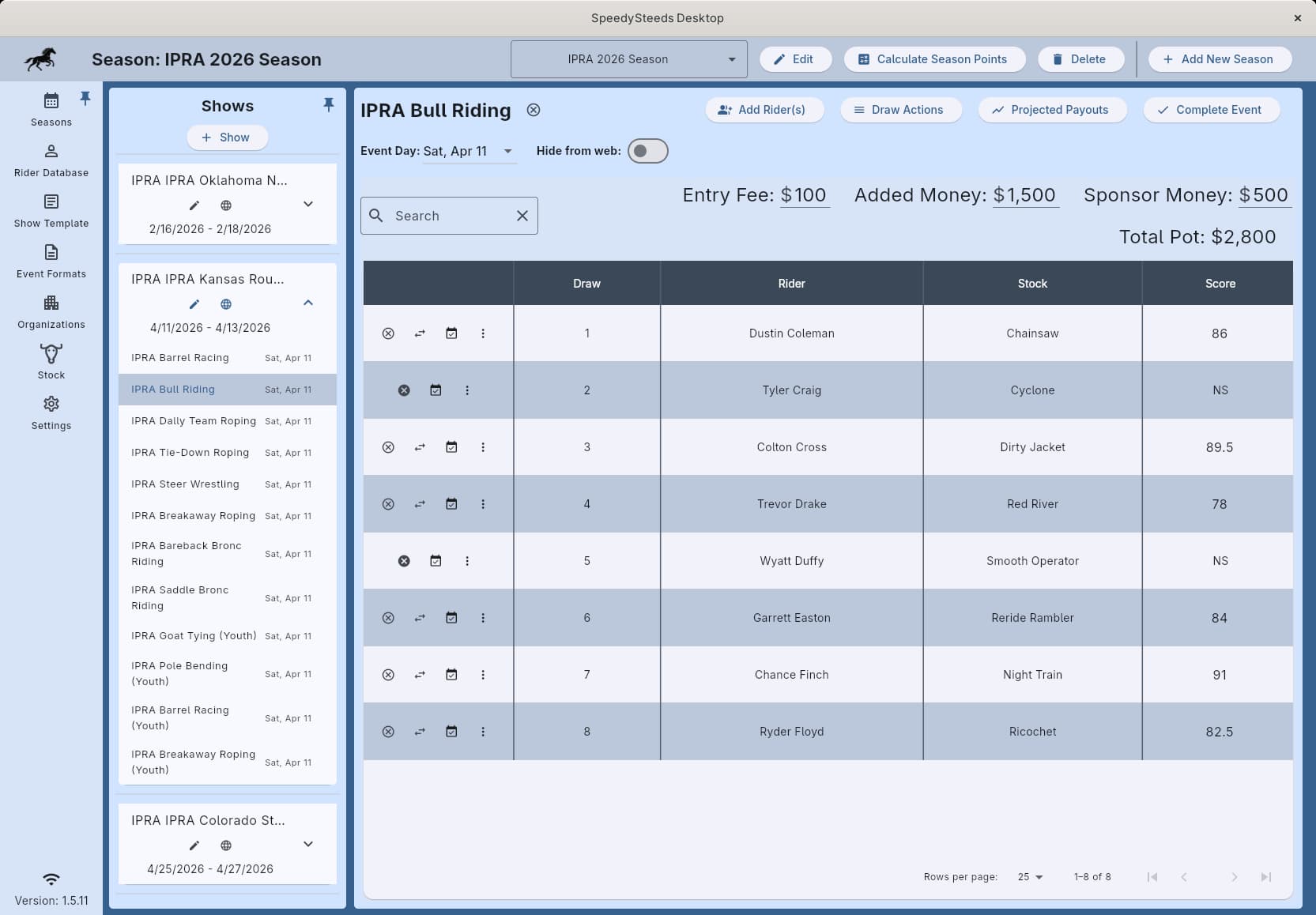
The judge’s score for the ride. Click the score cell to enter or edit a score. Higher scores place higher.
Stock (Scored Events)
The animal drawn for the contestant (e.g., bull, bronc). Populated by the stock draw.
Penalties
Each penalty type defined in the event format gets its own column in the results table. There are two column styles depending on the penalty type:
- Multiple-occurrence types (e.g., barrel knockdowns) show a +/- counter. Click the + button to add a penalty or the - button to remove one.
- Single-occurrence types (e.g., barrier break, one-leg catch) show a toggle button. Click once to apply the penalty, click again to remove it.
Each applied penalty adds its configured seconds value to the rider’s time for placement purposes. The penalized time is shown in the time column with a tooltip showing the per-type breakdown.
Row Action Buttons
Each result row has action buttons on the left side. The most frequently used actions during active result entry are always visible, while less common actions are grouped into an overflow menu (three-dot icon) to keep the table compact on smaller screens.
Always visible:
| Button | Description |
|---|---|
| No Time / No Score | Mark a run as having no time (timed) or no score (scored). Equivalent to a DQ - the entry receives no placement, points, or payout. |
| Turn-out | Set the turn-out status (none, notified, unnotified, medical, visible). |
Overflow menu (three-dot icon):
| Action | Description |
|---|---|
| Remove from event | Delete the entry entirely. For multi-round events, removes the rider from all rounds. |
| Scratch | Mark the rider as scratched (not running). |
| Release (doctor/vet) | Open the release dialog (see below). |
| Request Reride | Only shown for stock draw events. Opens the reride dialog. |
When a rider is scratched, the overflow menu is replaced by an Unscratch button. When a rider has No Time/No Score set, a filled cancel icon appears to unset it.
DQ (No Time / No Score)
Mark a run as disqualified. A DQ’d run receives no placement, no points, and no payout. Use this for rule violations like breaking the pattern.
Scratch
Mark a rider as scratched (not running). Scratched entries are skipped in the results - they don’t receive a time, placement, or payout. Access this from the overflow menu (three-dot icon) on the result row.
Release (Doctor / Vet / Voluntary)
The release action (in the overflow menu) opens a dialog where the secretary selects the release type:
- Doctor - The contestant has a medical release from a doctor.
- Veterinarian - The horse has a vet release.
- Voluntary - The contestant chooses to withdraw.
On confirmation the entry is automatically scratched and a refund amount is calculated based on the organization’s Release Window setting:
| Release Window | Behavior |
|---|---|
| Not set (blank) | Always refundable - full entry fee refunded regardless of timing |
| 0 hours | Never refundable - entry is scratched but no refund is issued |
| N hours (e.g. 72) | Refund granted only if the release happens at least N hours before the show date |
The release type, release date, and refund amount are stored on the result and appear in the rider’s fee summary. Released entries show as struck through with the refund amount deducted from the total.
The release button only appears on entries that are not already scratched or DQ’d. To undo a release, unscratch the entry - the release metadata is preserved but the entry becomes active again.
Draw
The rider’s draw position in the run order.
Rollover
Rollover handles situations where a result is moved from one event to another. For example, if a rider’s time in an Open class also counts toward a separate Youth class:
- Rollover From - Indicates this result was pulled in from another event
- Rollover To - Indicates this result has been copied to another event
The Rollover column is only shown when the event format has Allow Rollover enabled and the event is a single-run event (not multi-round).
Paid In / Paid Out
Track whether the rider has paid their entry fee (paid in) and whether their winnings have been paid out. These flags help with on-site billing and reconciliation.
Division Views
You can view results through different lenses:
- Payout divisions - Shows placements and prize money per division based on the organization’s payout settings
- Point divisions - Shows placements and points per division based on the organization’s point settings
Switch between views to see how the same set of times translates into payouts vs. points for different organizations.
How Scoring Works
- Times are sorted fastest to slowest (with penalties added)
- Riders are assigned to divisions based on their time relative to the fastest qualifying run
- Within each division, the matching entry range determines how many places are paid/awarded
- Payouts and points are calculated automatically based on the organization settings
Scoring recalculates automatically whenever you add or change a time, penalty, or DQ status. You don’t need to manually trigger a recalculation.
Ground Money
When a division has fewer entries than the minimum number of places to pay, the unclaimed prize money becomes ground money. The isGroundMoney flag marks these payouts. Ground money handling depends on the organization’s rules - it may roll into other divisions or be retained.
Team Events
For team events (e.g., team roping), each team entry is shown as a single collapsed row: the header rider’s name is stacked above the heeler’s, the horses are stacked the same way, and the team shares one draw number, one time, one penalty count, and one place. The Payout column shows the combined prize money for the team (header + heeler), and the Points column stacks each rider’s individual points so you can see how each contributes to their season standings.
Run-level edits - entering a time, adding penalties, marking a DQ, scratching, or setting a turn-out - apply to the whole team in one click. There is no separate row to keep in sync. Removing the team deletes both members at once.
Each rider on a team still tracks points and membership eligibility independently. That’s why points are stacked even though everything else is collapsed - the header and heeler may belong to different organizations or year-end races.
Out-If Parameters (PRCA R1.4)
Contestants entering through the local web portal can attach optional out-if flags to their entry. These flags request automatic scratch/release when a specified condition occurs:
- Out if buddy is dropped - Automatically scratch this entry when a rider in the same buddy group is removed from the event.
- Out if not drawn into a performance - Automatically scratch this entry if the draw places the contestant in slack rather than a performance.
- Out if weather cancellation - Automatically scratch this entry if the rodeo is postponed past the weather threshold.
Out-if flags are stored per result and are honored during cancellation/buddy-drop workflows. The buddy-drop flag is processed immediately when a rider is removed from an event - all buddies in the same group who opted in are scratched automatically, with no manual intervention required.
Out-if flags are only available on the web sign-up portal. Entries added directly through the desktop app do not carry out-if flags, since the secretary is managing those entries in person.
Multi-Round Results
For events with multiple rounds (configured in the event format):
Go-Rounds
Each go-round has its own set of results. Riders compete in each go-round, and their times are recorded separately.
Average
When enabled, an average standing is calculated across all go-rounds. The average time determines qualification for the short go and overall standings.
Short Go
The finals round. Only qualifying riders (based on the Short Go Qualifier Count in the event format) advance. Results are entered the same way as go-rounds.
Each round type can be viewed and scored independently.
Sidepot Results
When an event has linked sidepots, sidepot results are managed as follows:
- Opt-in enrollment - adding a rider to the parent event does not auto-enroll them in sidepots. Riders must be explicitly added to each sidepot via the sidepot’s “Add Riders” dialog, which shows only riders already in the parent event (filtered by the sidepot’s age/gender restrictions and locked to the horse used in the parent).
- Rollover inheritance - sidepot entries inherit the parent’s time/score/penalties via the rollover mechanism. No separate run is required.
- Removing a rider from the parent event automatically removes their entries from all linked sidepots.
- Completing the parent event cascades completion to all sidepots.
- Each sidepot calculates its own payout independently using its own entry fee, added money, and division settings.
Sidepot entries appear in the result table like any other entry. The rollover overlay handles time/score inheritance during hydration, so the payout engine works identically for parent and sidepot events.
Workflow
- Navigate to the event within a show
- Results are displayed in draw order
- Enter each rider’s time as they finish their run
- Add penalties if applicable (barrel knockdowns, etc.)
- Mark any DQ’d or scratched entries
- The system automatically calculates divisions, placements, and payouts
- After all runs, review the results by division
- Export results to PDF or Excel
See Also
- Draw Management - Setting up the run order before entering results
- Stock Management - Livestock inventory and reride requests
- Divisions & Entry Ranges - How divisions and placements are calculated
- Organization - Payout and point rules that drive scoring
- Points & Standings - Season-level accumulation of points
- Printing & Exporting - Exporting result sheets
- Show Fees & Billing - Tracking paid in / paid out