Draw Management
The draw determines the run order for riders in an event. After riders are registered, you generate a draw to set who runs when.
Draw Behaviors
The draw behavior is configured in the event format. There are four options:
Random
A fully randomized run order. This is the most common draw type for standard barrel racing events. The draw is generated using a random algorithm weighted by horse draw weights.
Reverse of Previous
The run order is the reverse of the previous round’s order. Used in multi-round events where the rider who ran last in the previous round runs first in the next.
Reverse Qualification
Run order is based on qualification standings in reverse - the slowest qualifier runs first, and the fastest qualifier runs last. Commonly used for short go (finals) rounds where the best qualifier gets the advantage of running last.
Manual
You set the run order by hand. Useful for exhibition events or special formats where you need full control over the order.
Draw Weight
Each horse has a draw weight value (configured in the rider database). When a rider enters multiple horses in the same event, the horse with the highest draw weight is placed earlier in the run order. This prevents a rider from having back-to-back runs with different horses.
The default draw weight is 1. Setting one horse to a higher weight gives it priority in the draw. Horses with the same draw weight are ordered randomly relative to each other.
Generating a Draw
- Navigate to the event within a show
- Ensure all riders are registered
- Open the draw dialog
- Select the draw behavior (or use the default from the event format)
- Generate the draw
The draw list shows each entry in run order, displaying the rider name, horse name, and draw position number.
Regenerating a Draw
You can regenerate the draw at any time before or during the event. Regenerating creates a completely new random order (for random draws) or recalculates based on the selected behavior.
Regenerating a draw also resets the first-go trade count to zero (see First-Go Trades below). This means if the secretary needs to redo a draw - for example, after testing or correcting a mistake before the round is posted - the full trade quota is available again.
Regenerating a draw after results have been entered does not change existing results. The draw number on already-entered results remains as it was when the result was recorded.
Multi-Round Draws
For events with multiple rounds (configured in the event format):
- Go-rounds use the Go-Round Draw Behavior - typically random for the first round
- Short go uses the Short Go Draw Behavior - typically reverse qualification order
- Each round can have its draw generated independently
Team Event Draws
For team events, the draw is generated per team, not per rider - the team itself owns the draw number, so the header and heeler always carry the same position and run together. The draw sheet collapses team pairs into a single row with both rider names stacked.
Stock Draw (Scored Events)
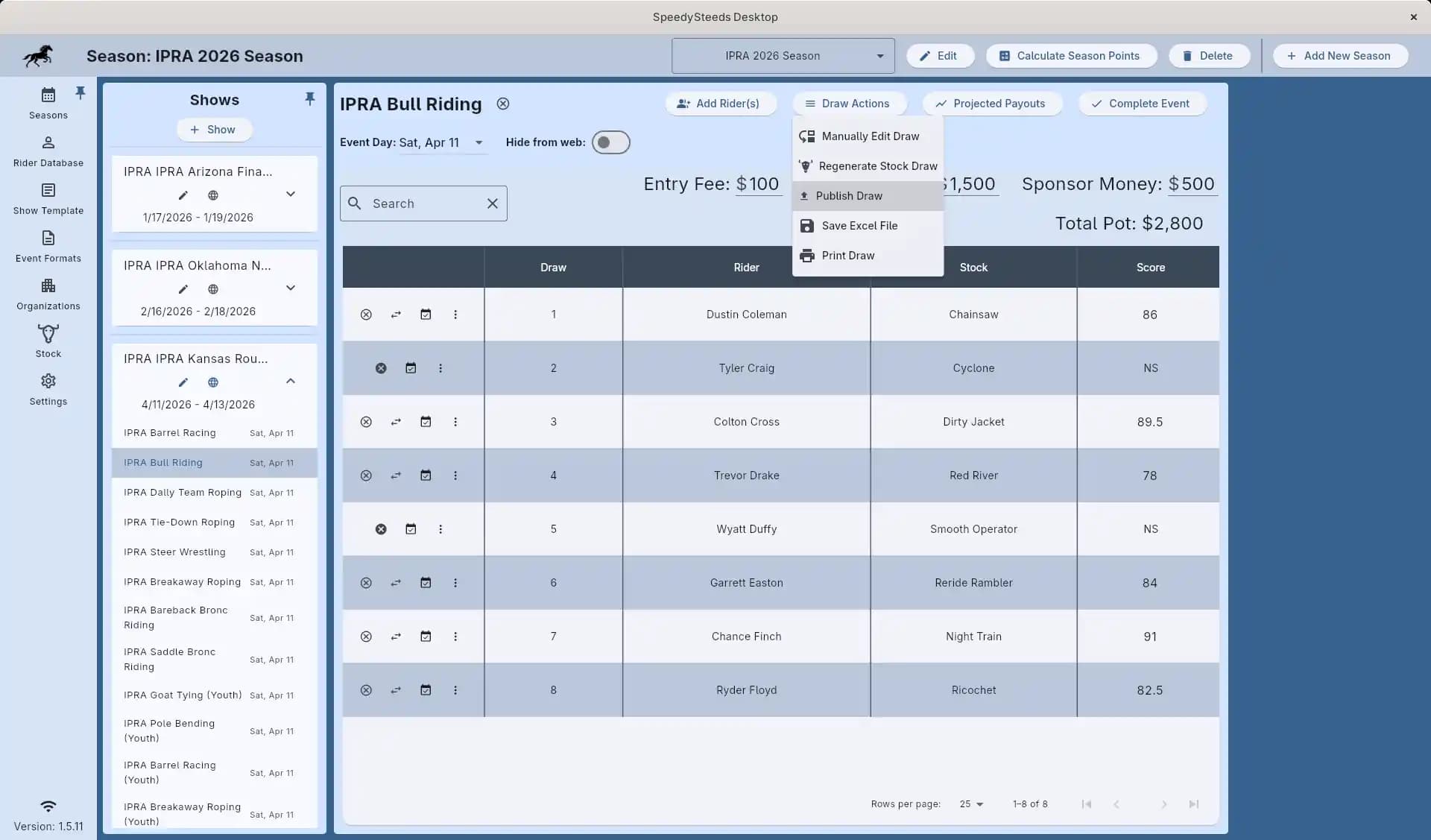
For events that need livestock (bull riding, bronc riding, steer wrestling, etc.), enable Stock Draw Needed in the event format and choose the Stock Type. Generate the draw from the event’s Draw Actions menu:
- Open the event within a show
- Open the Draw Actions menu
- Select Generate Stock Draw (or Regenerate Stock Draw if one already exists)
- The contestant run order and stock assignment are created together - stock is dealt out from the current stock inventory of the matching type
Because the run order and stock assignment are tied together for stock events, the separate Generate Draw button is hidden - a single action produces both.
Stock Uniqueness
Each stock animal can only be assigned once per rodeo (show). If you try to generate a draw when too few unused animals of the right type remain, SpeedySteeds warns you:
Only N unused <type> animals are available but M contestants are entered.
You can either Cancel and add more stock (or draw fewer contestants), or Draw Anyway to reuse animals that were already drawn elsewhere in the show.
Stock Identifiers and Enable/Disable
Each animal in the stock inventory has an optional Identifier - a short brand or tag like E-123 or HS12R - and an Enabled for draws checkbox. Disabled animals stay in inventory (so you don’t lose their history) but are excluded from every stock draw and from the reride pen. Use this to temporarily sideline an injured or unavailable animal without deleting it.
Editing a Stock Assignment
From Draw Actions → Edit Draw, you can drag contestants to reorder them and use the per-row Stock dropdown to reassign a specific animal to a specific contestant. Saving the dialog persists both the new run order and any changed stock assignments.
The stock assignment appears in the Stock column of the results table. For multi-round scored events, you can generate a separate stock draw per round from that round’s draw actions menu - each round’s draw only locks its own stock out of other rounds when the uniqueness check runs.
First-Go Trades
When the payout organization has First-Go Trades enabled, the draw screen for the first go-round shows a swap icon next to each entry. Tapping it opens a picker listing the other contestants - selecting one swaps their draw positions.
The trade counter appears at the top of the draw list (e.g., “Trades used: 1 / 2 (WPRA Section R1.2)”). Once the quota is exhausted the swap button is disabled - no further trades can be requested.
Trades are tracked per round, not per contestant - the quota applies to the total number of trades in the round.
Pending Trades
Trades are not saved immediately. Each trade appears as a labeled chip above the draw list (“Trade 1: Alice ↔ Bob”) and a small Trade N tag next to each affected rider’s name. This lets the secretary review all trades before committing.
- Cancel a trade - Click the X on the trade chip to undo the swap. The draw positions revert and the trade counter decrements, freeing the slot for a different trade.
- Save - Clicking the Save button at the bottom of the dialog persists all pending trades and their updated draw positions at once.
- Cancel dialog - Clicking Cancel discards all pending trades as if they never happened.
Regenerating the draw resets the trade count to zero, so the full quota is restored. This is useful if the secretary needs to redo the draw before it is posted.
Buddy Groups
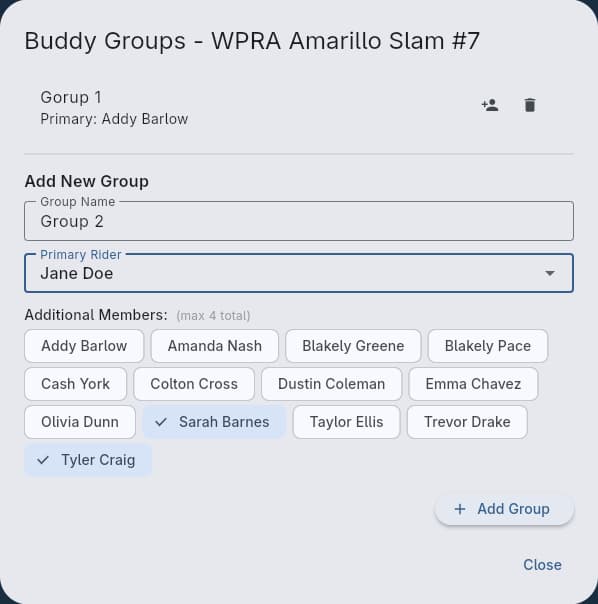
When the payout organization has the Buddy System enabled, the secretary can create buddy groups so that named contestants are drawn consecutively in the run order.
Managing Buddy Groups
- Open the show’s action menu (the pencil icon on the show tile)
- Select Manage Buddy Groups
- The dialog lists all existing buddy groups for the show
Creating a Group
- Enter a Group Name (e.g., “Smith Family”)
- Select the Primary Rider - the contestant who requested the buddy arrangement
- If the organization has Multi-Event Buddy enabled, check the Multi-Event Buddy box to keep the group together across all events at the show (PRCA-style). Otherwise the grouping applies per-event only (WPRA-style)
- Select additional members using the filter chips
- Click Add Group
The primary rider is automatically included as a member. The organization’s Max Group Size setting limits how many riders can be in a group (default 4 per PRCA R1.5.2.2 and WPRA 10.4.3.1). Cross-event buddy groups use the Max Cross-Event Group Size limit instead (default 2 per WPRA 10.4.3.2).
Editing a Group
- Add a member - Click the person-add icon on the group tile and pick a rider
- Remove a member - Expand the group and click the remove icon next to the rider (the primary rider cannot be removed)
- Delete a group - Click the delete icon on the group tile
How Buddy Groups Affect the Draw
When a draw is generated, the draw composer checks whether the payout organization has the buddy system enabled. If it does, it loads all buddy groups for the show and reorders the randomized draw so that group members appear consecutively. The relative order within a buddy group is random, but the group as a whole stays together.
Buddy groups can also be created by contestants through the local web portal during sign-up.
Scratches
After the draw is generated, riders who decide not to run can be marked as scratched. Scratched entries remain in the draw list but are skipped during the event and marked as non-competing in the results.
For team events, scratch (and DQ, turn-out, remove) operate on the team as a whole - both teammates always stay in sync because they share a single team row.
See Also
- Event Format - Configuring draw behaviors per event
- Stock Management - Livestock inventory and stock draw details
- Rider Registration - Adding riders before generating the draw
- Results & Scoring - Recording run times after the draw is set
- Rider Database - Setting horse draw weights